In an attempt to motivate myself to practice Spanish more often at home, I decided to explore Ollama models, which I have previously used for offline conversations.
I thought it would be nice to be able to build the foundations of a conversation system where I could speak a message in Spanish, convert the speech to text and feed it into Ollama. After Ollama has generated a response, I then want to convert that text into speech that simulates a native Spanish speaker.
Once I was able to figure out each individual component, the workflow ended up being quite simple. So in this post, I will summarize the different components of the workflow and show it in action at the end with a demo.
Table of Contents
Prerequisites
(1) FFmpeg (Optional)
The TTS Audio Suite used in my workflow can use FFmpeg for higher-quality audio stretching.
For download, visit the official site: https://ffmpeg.org
(2) Audacity (Optional)
Audacity is a free, open-source computer program used to record and edit sound. This program is very handy if you want to make voice recordings of your own for voice cloning.
For download, visit the official site: https://www.audacityteam.org
(3) ComfyUI Desktop (Mandatory)
ComfyUI is the program used to create the workflow and connect different AI functions that can run locally on your own hardware. Cloud solutions are also available although I haven’t tried any of them yet.
For download, visit the official page: https://comfy.org/download/
(4) Ollama (Mandatory)
Ollama is a manager and runner for AI models. It handles the setup, downloads, and hardware acceleration needed to run AI locally.
For download, visit the official page: https://ollama.com/
Install a Spanish Ollama AI model
To achieve an authentic Spanish conversation, I will be using the OpenEuroLLM-Spanish model.
For download, visit the official Ollama model page: https://ollama.com/jobautomation/OpenEuroLLM-Spanish.
I have selected this model for the following features listed on its page:
- Native Spanish Responses: Always responds in natural, correct Spanish
- Culturally Aware: Understanding of Spanish culture, history, and regional context
- Specialized Vocabulary: Prioritizes genuine Spanish vocabulary over loan words
- Grammatical Accuracy: Properly handles Spanish-specific grammar rules and constructions
- Fast & Efficient: Based on the efficient Gemma3 architecture for good performance even on consumer hardware
Connect Ollama to ComfyUI
Next, we need to install the ComfyUI-Ollama extension to gain access to nodes used to establish communication with your local Ollama model.
For download, install it via the “Extensions” menu in ComfyUI OR download it to install manually in custom nodes: https://github.com/stavsap/comfyui-ollama
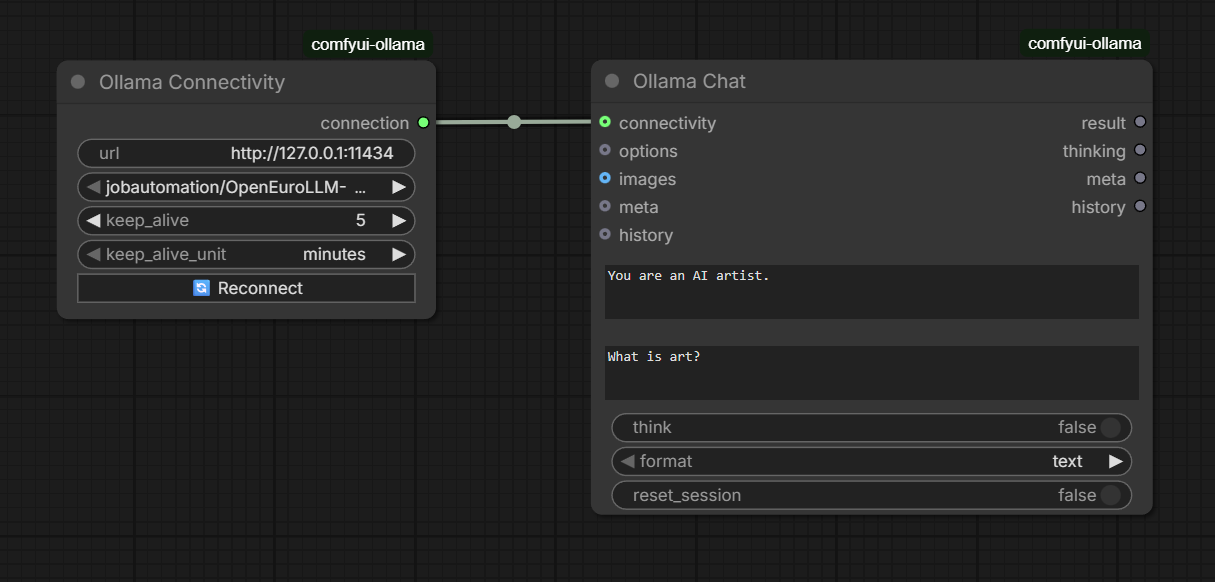
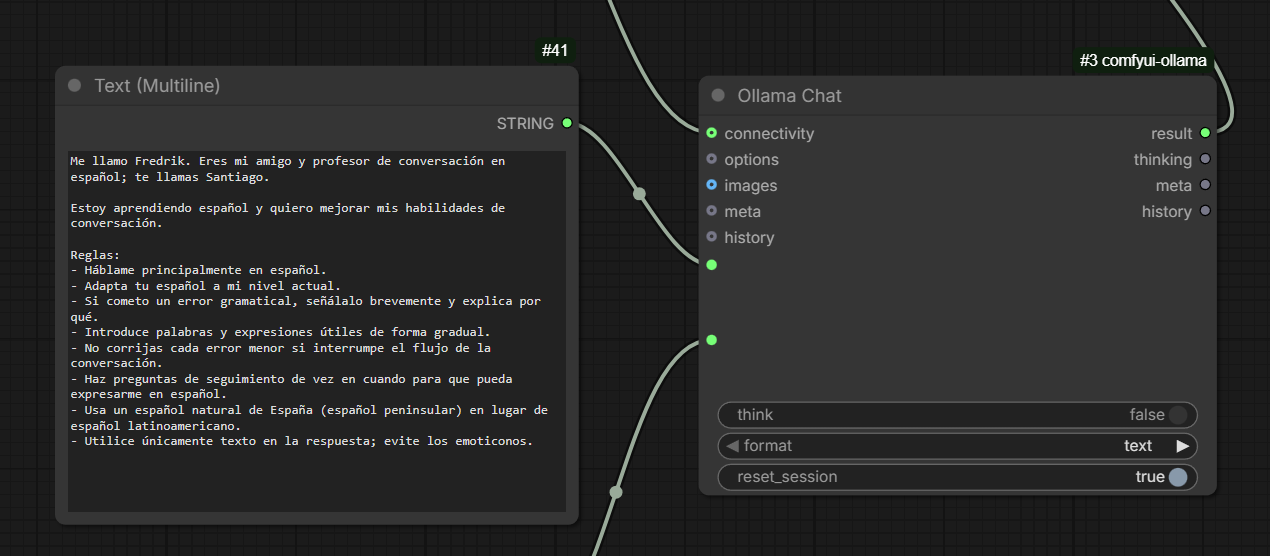
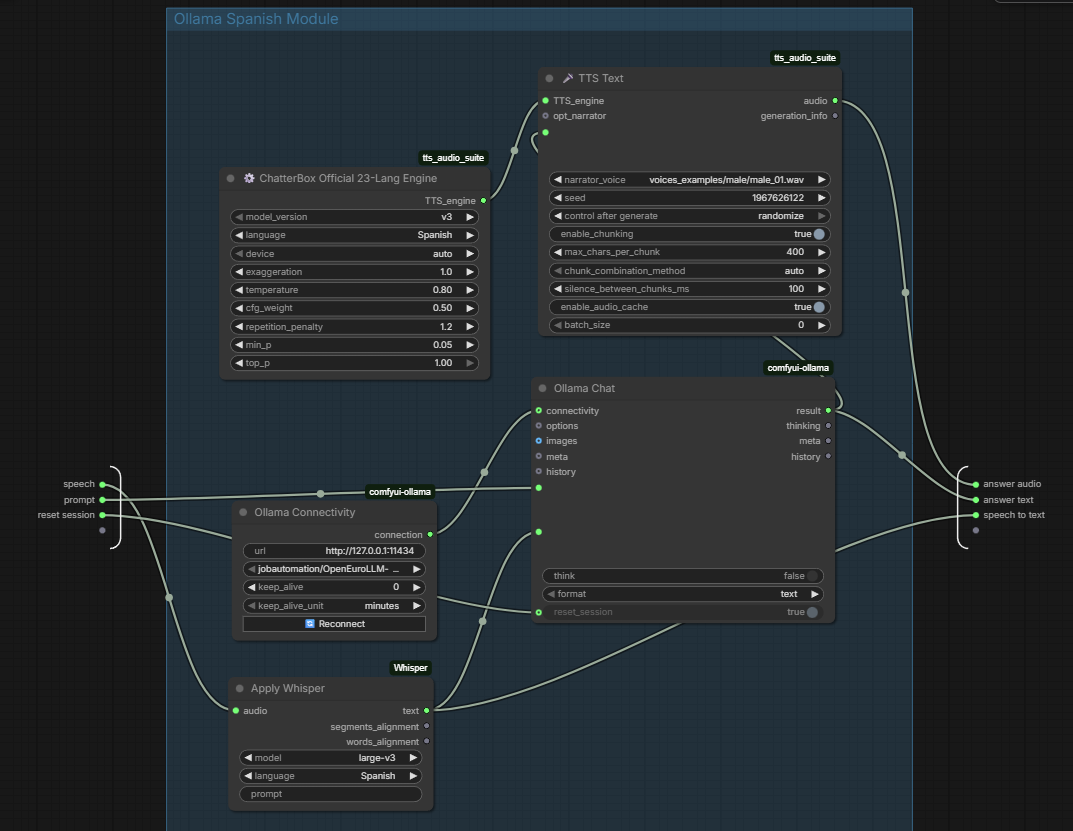
We are going to use “Ollama Connectivity” to connect the model and then route it into a “Ollama Chat” node. Now we can write a prompt to describe the behaviour for the model and also input text used to engage with the model, such as asking questions or just starting a conversation. As you can see, the OpenEuroLLM-Spanish model is available for selection after installation.
Record a voice sample (Optional)
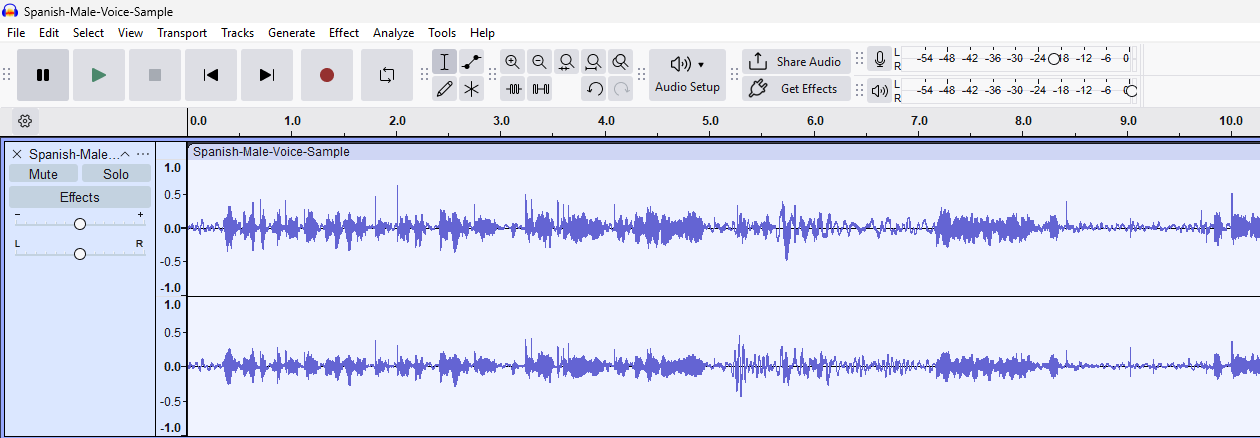
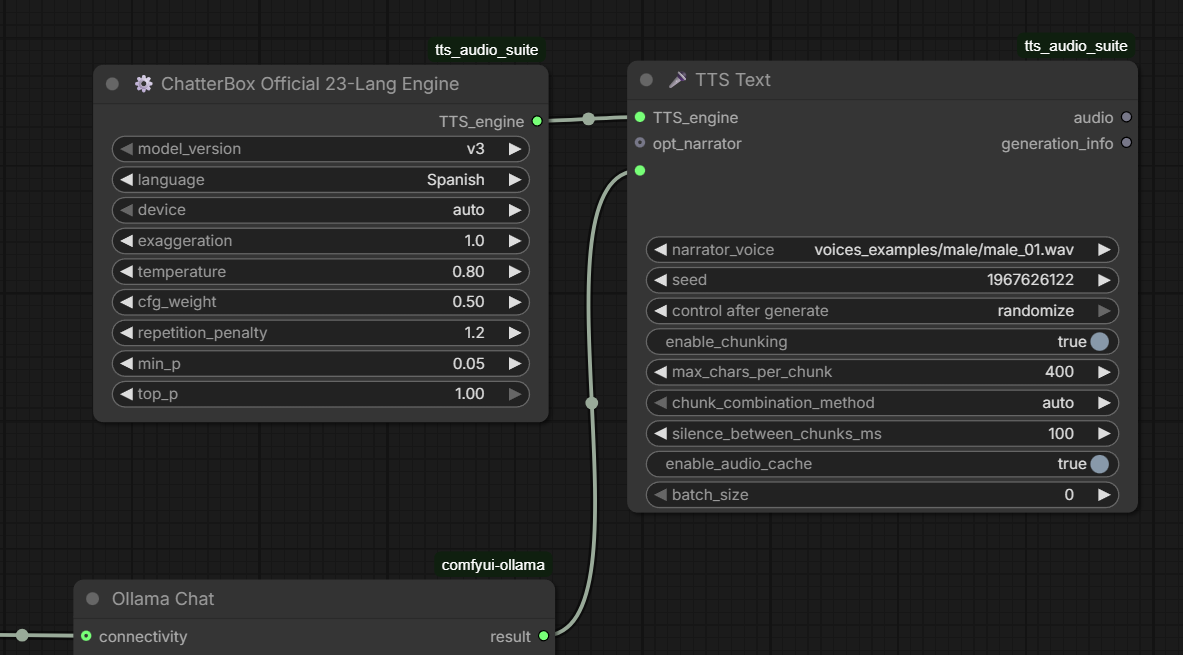
We are going to be using the “ChatterBox Official 23-Lang Engine” node to produce the audio response, which already hosts a number of voice samples that can be used for different languages. If you want to clone a voice, you need a short sample of it lasting for at least 8 to 10 seconds.
Note: Take extra care with voice cloning – respect people’s integrity. Even when a dataset license permits reuse, you should still be cautious about using a real person’s voice to make them say things they never said—especially if you publish the generated audio or use it commercially.
Convert audio message to text to Ollama
In order to convert my audio recording from my microphone into a text message, I’m using the ComfyUI-Whisper extension custom node.
For download, visit the Github page: https://github.com/yuvraj108c/ComfyUI-Whisper
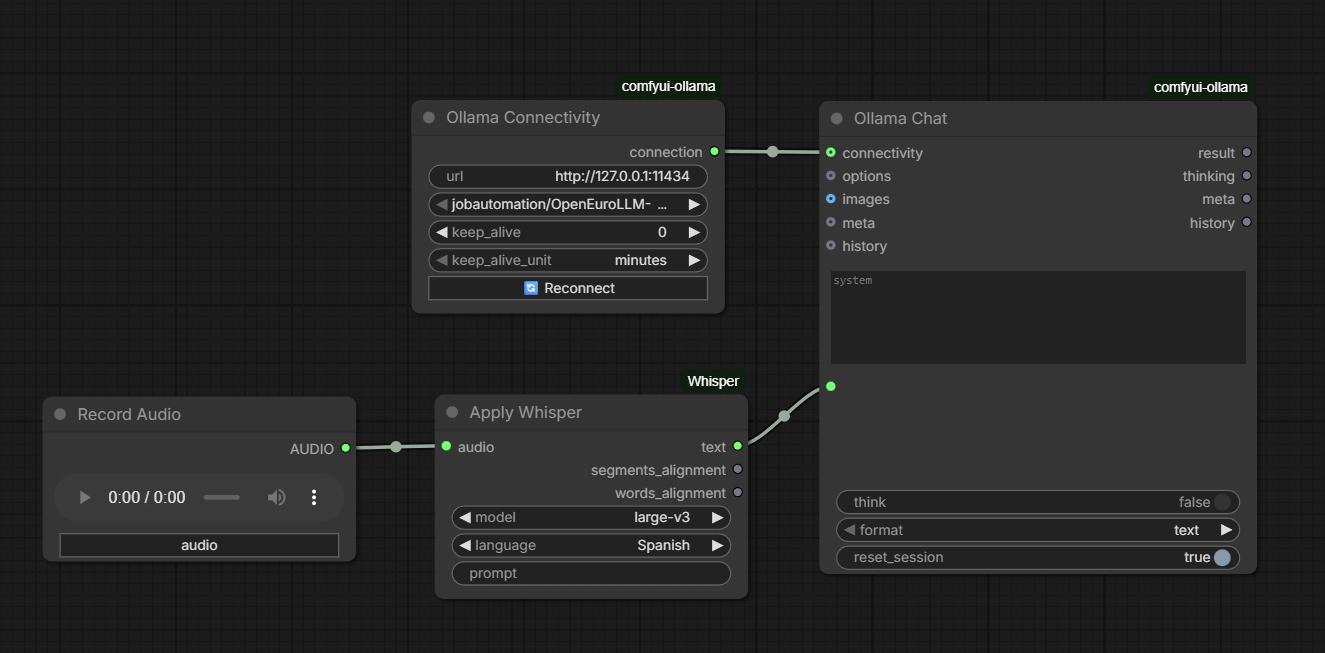
From this extension, I can use the “Apply Whisper” node which takes my audio recording and converts it to text, given a specified language and a model. I have found through experimentation that large-v3 gives very precise results, even when I personally think I haven’t pronounced something properly in Spanish, it has still picked up on it correctly. Next, I’m sending the resulting text string to the “Ollama Chat” node’s input parameter “User Prompt” which I normally would’ve written by hand.
Send the text response to TTS Text
To clone the voice sample to produce an audio response, we run it via TTS Text connected to the Chatterbox Official 23-Lang Engine. Again, through experimentation, I have found that the v3 model produces the best audio result. What’s amazing about TTS Text is that it can handle audio responses up to 40 seconds which is more than enough to handle conversational responses.
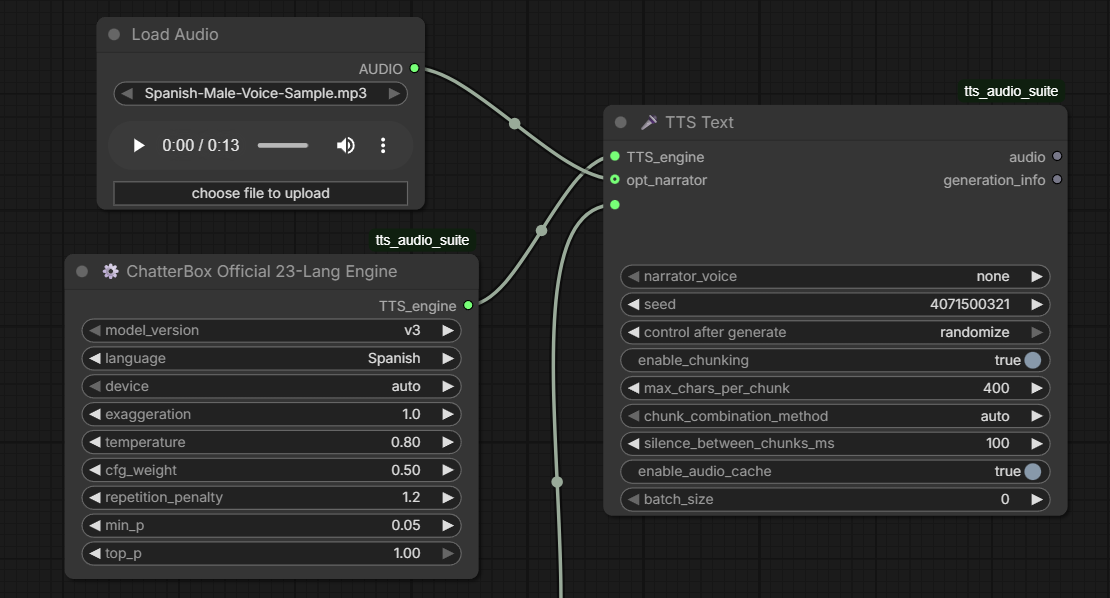
If I had recorded a voice to clone, I would input this to the “opt_narrator” input on the “TTS Text” node as seen below:
Connect the TTS audio output to an audio player
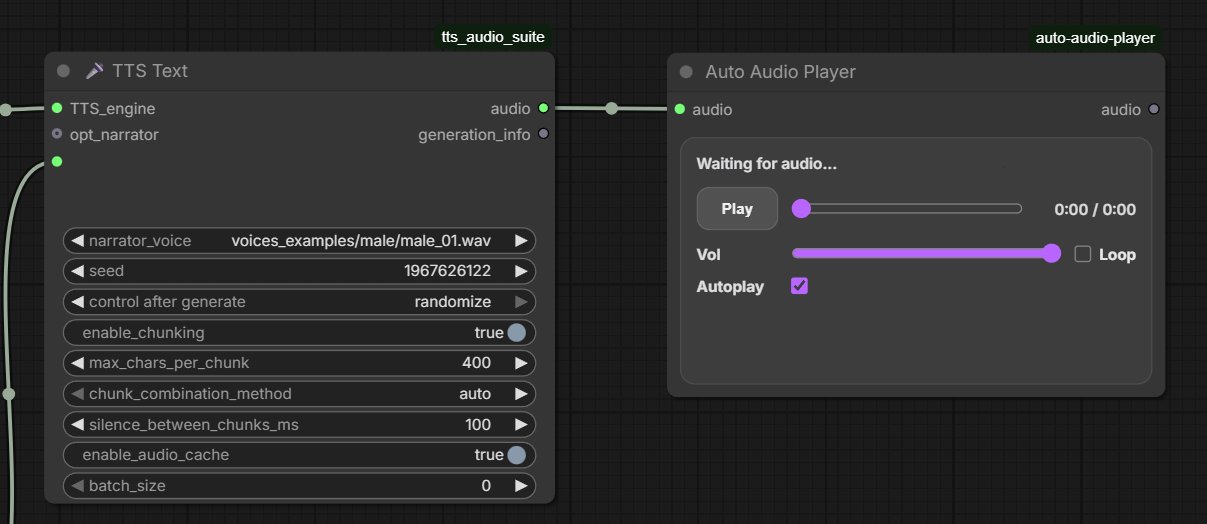
To automatically play the audio response once it has been created, I take the audio output from the TTS Text node and give it to an “Auto Audio Player” node.
Create and connect the system prompt
Now it’s time to configure the behaviour of our Spanish model and for my first exercise, I will create a prompt in Spanish describing how I want the AI model to speak to me. Hear this; I actually ran my original prompt via OpenEuroLLM-Spanish and it helped me improve it to make it sound more natural.
¡Hola! ¿Es gramaticalmente correcto el siguiente texto, que describe el comportamiento de una inteligencia artificial?
“Me llamo Fredrik. Eres mi amigo y profesor de conversación en español; te llamas Santiago.
Estoy aprendiendo español y quiero mejorar mis habilidades de conversación.
Reglas:
- Háblame principalmente en español.
- Adapta tu español a mi nivel actual.
- Si cometo un error gramatical, señálalo brevemente y explica por qué.
- Introduce palabras y expresiones útiles de forma gradual.
- No corrijas cada error menor si interrumpe el flujo de la conversación.
- Haz preguntas de seguimiento de vez en cuando para que pueda expresarme en español.
- Usa un español natural de España (español peninsular) en lugar de español latinoamericano.
- Utilice únicamente texto en la respuesta; evite los emoticonos.”
Here is the response of the OpenEuroLLM-Spanish model:
Sí, el texto es gramaticalmente correcto y muy bien redactado. Transmite la información de forma clara y precisa.
Sin embargo, hay algunos pequeños ajustes que podrían hacerlo sonar aún más natural y pulido, aunque los originales son perfectamente válidos:
- “Me llamo Fredrik. Eres mi amigo y profesor de conversación en español; te llamas Santiago.” Podría mejorarse a: “Me llamo Fredrik. Tú eres mi amigo y profesor de conversación en español; te llamas Santiago.” Añadir el “Tú” enfatiza que te diriges directamente a la IA. También se podría decir: “Me llamo Fredrik. Eres mi amigo y me enseñas español; te llamas Santiago.” (más informal)
- “Adapta tu español a mi nivel actual.” Se podría decir: “Adapta tu español a mi nivel.” (más conciso)
- “Introduce palabras y expresiones útiles de forma gradual.” Se podría decir: “Introduce palabras y expresiones útiles poco a poco.” (más coloquial)
- “Usa un español natural de España (español peninsular) en lugar de español latinoamericano.” Se podría decir: “Utiliza un español natural de España, preferiblemente de la Península.” (más preciso)
- “Utilice únicamente texto en la respuesta; evite los emoticonos.” Se podría decir: “Responde únicamente con texto; evita los emoticonos.” (más directo)
En resumen, el texto original es muy bueno. Las sugerencias anteriores son solo para darle un toque aún más natural y pulido.
The prompt can be written directly in the system prompt input but I prefer to run it via a multline text node since I want to isolate the Spanish speech to text and audio response in a subgraph node to clean things up in the end.
Making a workflow subgraph
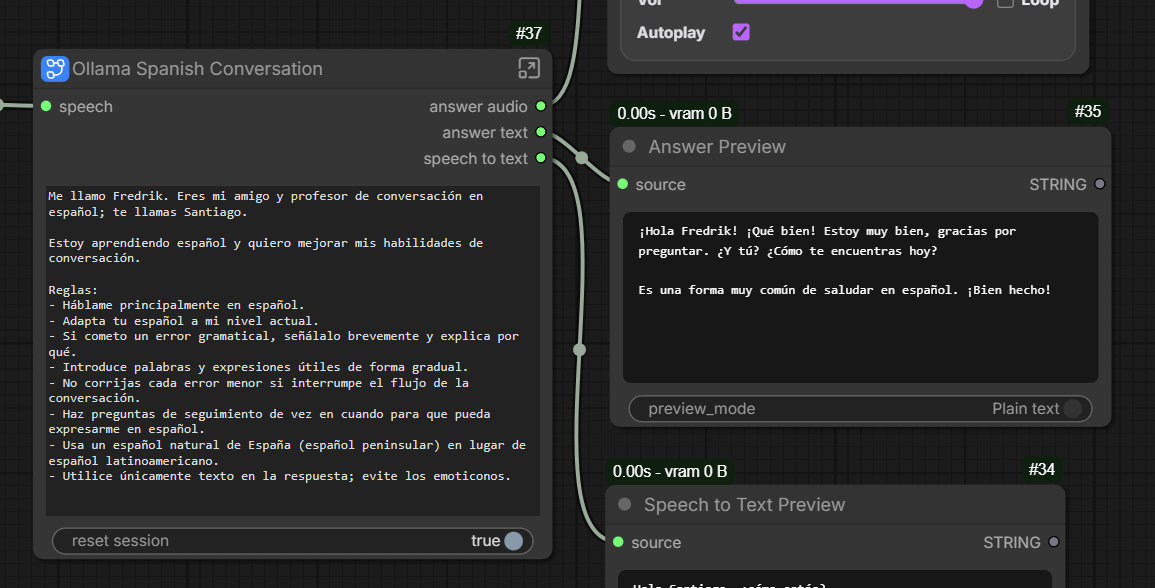
By making a subgraph of all the previously mentioned nodes, I can create a “black box” border where I determine which inputs and outputs I’m interested in. For input, I’m only really concerned with passing on my audio recording. For output however, I would also like to add some “Preview Text” nodes to validate that Whisper successfully converted my speech to text and also see the text format of the AI model response. I’ve also exposed the “reset_session” input to “Ollama Chat” node in case I need to reset the chat or want to start over completely fresh.
As you can see below, I started a conversation with the AI model by asking “Santiago” how he was doing, the working name for my conversation partner in the system prompt.
Below is the core of the workflow and all the previous nodes mentioned, except the “Load Audio” node which was connected to the “opt_narrator” input in the “TTS Text” node for voice cloning.
Demo of the Spanish conversation workflow
Here is a short demo of how a conversation with “Santiago” can look like:
The performance, as you can see, taking into account that I’m running speech to text and then back from text to speech, is quite good in my opinion and satisfactory for practicing a Spanish conversation.
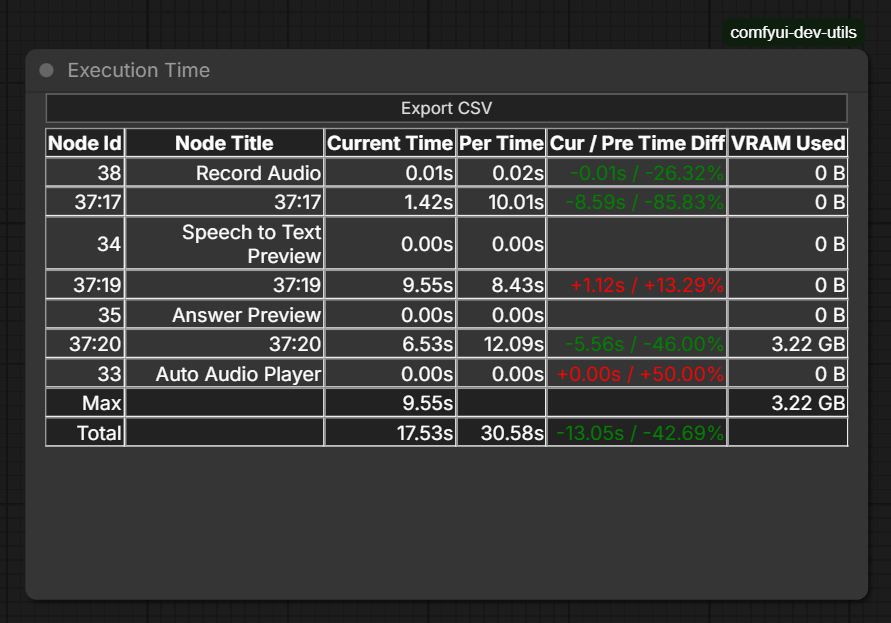
The longest time I’ve had to wait is perhaps around 17-20 seconds for a 10-12 second response, based on the output log. The first prompt is always more demanding as models are loaded into memory but once they are in memory, the execution times go down. The first prompt can take up to 30 seconds at most in my experience.
I initially thought this had something to do with the V3 model but it isn’t a huge VRAM monster and the official model is still “only” 500M parameters, and the ComfyUI 23-language implementation is generally considered usable on GPUs with around 4 GB+ VRAM, although actual working memory depends heavily on the workflow and implementation. For more information on the specifications, see the following database page: https://vramdb.com/nodes/pentarab/comfyui-for-chatterbox/?utm_source=chatgpt.com.
I actually went ahead and also installed the ComfyUI-Dev-Utils extension to gain access to timing nodes.
For download, see the Github page https://github.com/ty0x2333/ComfyUI-Dev-Utils?utm_source=chatgpt.com.
The timing node confirms what I had previously inspected manually in the output logs when executing the workflow. I first restarted ComfyUI and reloaded the models in the first prompt, then ran it a second time. Some nodes here only display their Node ID Badge within the subgraph (Id 37).
37:17 = Whisper (Speech to text)
37:19 = Ollama Chat (OpenEuroLLM-Spanish model)
37:20 = TTS Text (Text to speech)